There are three separate backups on an Android phone, and most people only know about one of them. Settings, apps and messages go to Google, or to Samsung on a Galaxy. Photos go up through Google Photos. WhatsApp looks after itself. Skip any of the three and your new phone starts out half empty. Below we go through each one using the menu paths Google and Samsung publish, then show how to copy everything over a cable to a PC, a Mac or a USB-C drive so you don’t depend on anyone’s cloud. We checked the docs and prices on 28 September 2026.
- Turn on Google backup first. Settings, then Google, then All services, then Backup. That gets you apps, contacts, call history, SMS and settings, and it fits inside the free 15 GB.
- Photos are a separate switch. Open Google Photos, tap your profile picture, then Photos settings, then Backup. Original quality counts fully against your storage; Storage saver shrinks photos to 16 MP.
- Samsung owners get two extras. Smart Switch writes a full backup to a PC, Mac, SD card or USB drive. Samsung Cloud takes messages, calls and settings but won’t touch photos.
- Check when it last ran. Google erases a device backup once the phone has sat unused for 57 days, and Samsung Cloud deletes everything after 12 months without use.
What the Google backup leaves out
Google’s backup covers the things you’d hate to redo by hand: installed apps and their data (where the developer allows it), contacts, the call log, text messages and device settings. Don’t mistake it for a copy of the phone. Photos only go up if Google Photos backup is on, WhatsApp keeps its own backup, and downloads, music and any app that opts out get left behind. Google’s page admits as much: “Not all apps can back up or restore all settings and data.”
Step 1: turn on Google backup on any Android phone
Google has started calling this Backup by Google One, which makes it sound like a paid extra. It isn’t; it’s built into Android. Some of the steps below need Android 9 or later, and backup isn’t available at all on a phone with a work profile.
- Set a proper screen lock. Google encrypts part of the backup with your PIN, pattern or password and asks you to use one rather than a swipe or Smart Lock.
- Open Settings, tap Google, then All services. Under “Backup and restore”, tap Backup.
- Turn Backup on. Choose photos and videos, device data, or both. If more than one account is signed in, tap Account storage to choose which one holds the backup.
- Tap Back up now for an immediate copy. Google says a first backup can take up to 24 hours; when it’s done, “On” appears under each data type.
- Leave the phone charging on Wi-Fi overnight. Automatic backups run when the phone is idle, charging and on Wi-Fi. A big first upload of photos and video also depends on your broadband’s upload speed, which on cable depends on your plan and partly on how recent your modem is.
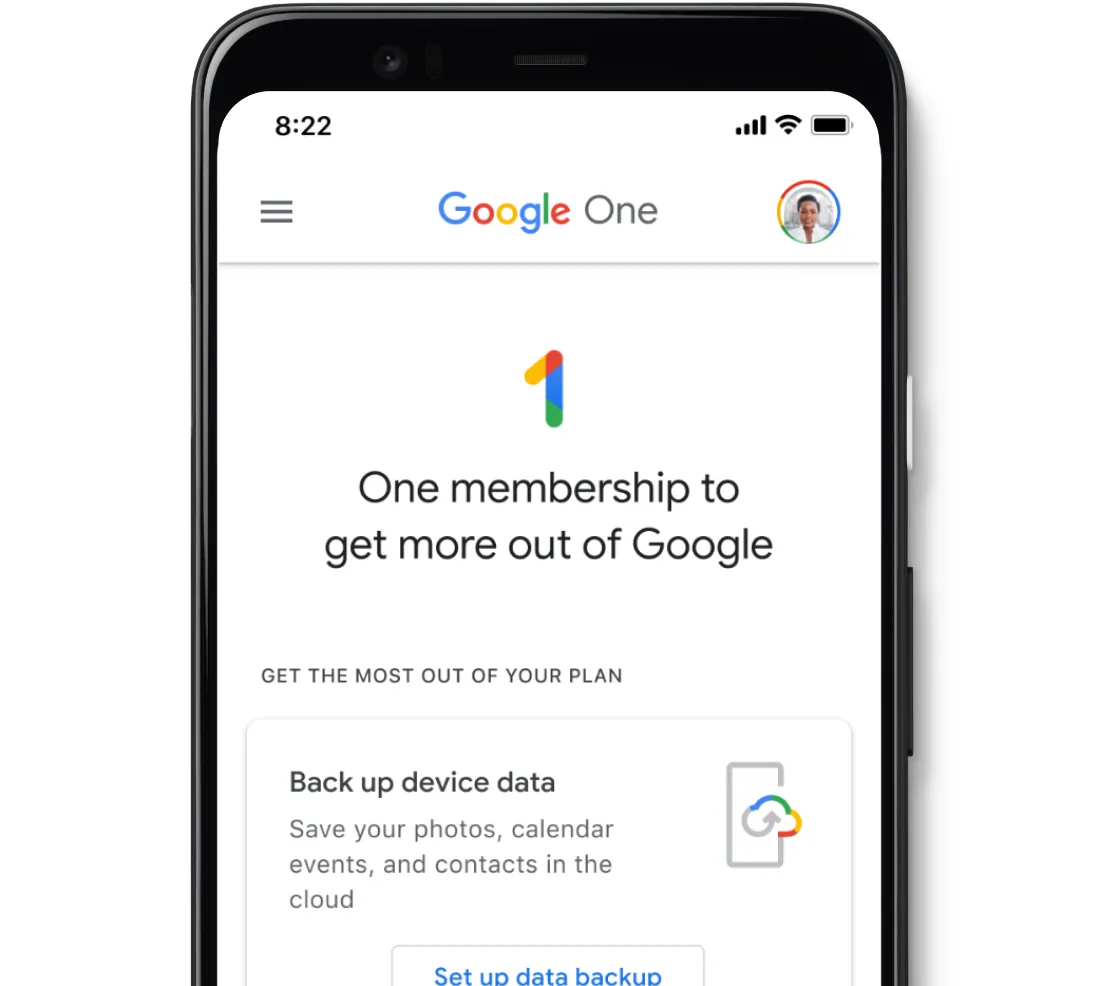
Google’s own list of what’s included covers apps and app data, call history, contacts, device settings, and SMS and MMS messages. Three more items come along if you use Google’s own apps: RCS chats from Google Messages, call settings and blocked numbers from Phone by Google, and pictures and videos from Google Photos. Everything travels encrypted, though the extra screen-lock encryption doesn’t cover Google Photos or carrier MMS media.
Step 2: back up photos and videos with Google Photos
Photos are where most of the storage goes, and where most people get caught out, because the switch lives in a different app. Open Google Photos, tap your profile picture in the top right, then Photos settings, then Backup, and turn it on. The quality setting is what decides how soon you’ll have to pay. Original keeps every pixel. Storage saver compresses photos to 16 megapixels and video to 1080p, and Express goes further, down to 3 megapixels and 480p. All three count against your Google storage; they just fill the 15 GB at different speeds.
To check that a photo has actually been uploaded, look at its thumbnail. A cloud with a line through it means it hasn’t. Or open the photo, tap More, then About, and read the status under Details. Do this before you wipe an old phone.
Step 3: WhatsApp chats
WhatsApp backs up to your Google account from inside the app, under its own Settings, then Chats, then Chat backup, where you pick the frequency and whether videos are included. The bit that catches people out now is the storage. Google’s support page doesn’t soften it: “On Android, WhatsApp backups now count toward your Google Account storage.” A few years of chat video can easily run to several gigabytes, and it sits in the same 15 GB as your photos and Gmail.
WhatsApp also offers an end-to-end encrypted backup protected by a password or a 64-digit key. Turn it on if you’d rather Google couldn’t read the archive, but write the key down somewhere physical. WhatsApp can’t recover it for you, and without it the backup is useless on the new phone.
Samsung phones: Smart Switch and Samsung Cloud
Galaxy phones run the Google backup above and add two backups of their own. Smart Switch is the one worth learning. It’s a free phone app plus a desktop program for Windows 10 or later and macOS 10.9 or later (Chromebooks aren’t supported) that writes a full backup to the computer’s disk. Samsung says the phone needs Android 4.3 or newer, and 7.0 or newer if you want the transfer encrypted.
- Install Smart Switch on the computer from Samsung’s site.
- Connect the phone with a USB cable and tap Allow on the phone.
- Open Smart Switch on the computer and click Backup. Untick anything you don’t want, then wait. Samsung warns it can take several minutes.
- No computer? Use a card or a drive. Insert an SD card or plug a USB flash drive into the charging port, open the Smart Switch app, tap the SD card icon in the top right, tap Back up, choose what to include, tap Back up again, then Done.
Samsung Cloud does less than the name suggests. From Settings, tap your Samsung account name, then Samsung Cloud, then Back up data. It takes call logs, messages, contacts, calendar, clock, settings, home screen layout and app data, either manually or once a day while the phone charges on Wi-Fi. Samsung’s own page says photos and videos can’t be backed up to Samsung Cloud at all, that it isn’t available on Verizon phones or in some countries, and that everything gets deleted after 12 months without use.
Over a cable: PC, Mac or USB-C drive
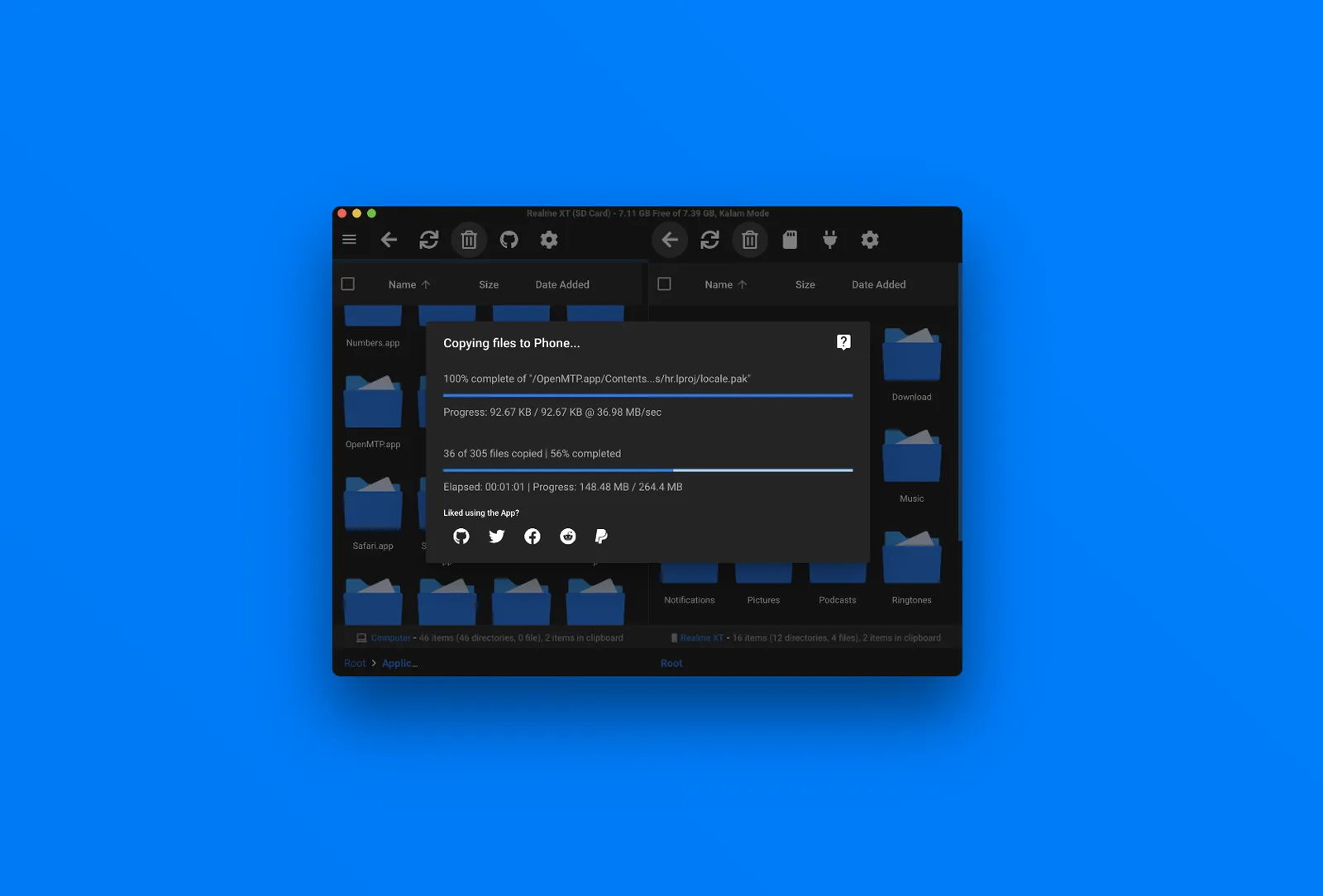
Cloud backups are convenient, but you’re renting the space and living with someone else’s expiry rules. If you want a copy nobody can delete, plug the phone into a computer. On Windows, set the phone to “File transfer” mode and it shows up in File Explorer; drag the DCIM, Pictures, Download, Documents and WhatsApp media folders across. A Mac can’t browse that connection on its own, and Google’s old Android File Transfer utility isn’t offered any more. OpenMTP does the job instead. It’s free, open source under the MIT licence, runs on macOS 10.14 and later (version 3.3.0 as of 22 August 2026), shows the phone and the Mac side by side, copies lots of files at once and copes with files over 4 GB.
| Tool | What it copies | Where it goes | Photos and videos | Cost |
|---|---|---|---|---|
 Google backupbuilt into Android | Apps, app data, contacts, calls, SMS/MMS, settings | Google account cloud | Via Google Photos | 15 GB free, Google One above that |
 Google Photosphotos.google.com | Photos and videos only | Google account cloud | Yes | Counts against the same 15 GB |
 Samsung Smart SwitchGalaxy only | Full phone backup, categories selectable | Windows PC, Mac, SD card, USB drive | Yes | Free |
 Samsung CloudGalaxy only | Calls, messages, contacts, calendar, settings, home screen, app data | Samsung account cloud | No | Free; deleted after 12 months unused |
 OpenMTPmacOS 10.14+, v3.3.0 | Any files and folders you drag | Mac disk or external drive | Yes | Free, open source (MIT) |
You don’t need a computer for the files, either. A USB-C flash drive or SSD plugs straight into the charging port, and Android’s Files app or Samsung’s My Files copies folders onto it. On a Galaxy, Smart Switch can write its whole backup to that same drive, which is about as close as Android gets to a full offline image. A folder copy will never capture app data, sign-ins or settings, though, so keep the Google or Samsung backup running as well.
+Pros of cloud backup
- Automatic once set up; nothing to remember
- Restores apps, settings and messages, which a folder copy cannot
- Works when you set up a new phone, with one sign-in
- 15 GB free covers device data for most people
+Pros of a local copy
- No expiry: Google’s 57 days and Samsung’s 12 months do not apply
- Original-quality photos without buying storage
- Includes downloads, music and files the cloud backup skips
- Readable on any computer, with no account needed
What Google One storage costs
Device backups are tiny. Photos and WhatsApp aren’t, and they all draw from the same pool, so once the free 15 GB is gone, backups stop until you clear space or pay. The plans below are what one.google.com showed us from Ireland on 28 September 2026. Google sets prices by country, so check what it shows where you live. Every plan can be shared with up to five other people, and Google advertises up to 16 percent off if you pay annually.
For a phone backup on its own, 100 GB is plenty. The 2 TB tier is really an AI subscription with storage thrown in, so it’s good value if you want Gemini anyway and poor value if you just need somewhere to put photos. Cheaper still is Storage saver quality in the cloud plus a local copy of the originals.
Check it worked, then restore to the new phone
Before you reset or trade in the old phone, look in three places. In Settings, Google, All services, Backup, every data type should say “On” with a recent time next to it. In Google Photos, the last photo you took shouldn’t have the cloud-with-a-line icon. In WhatsApp’s Chat backup screen, the last backup should be today. Google Drive no longer has a Backups tab, by the way; device backups now sit in your Google Account dashboard, where Google warns that “Delete all data” wipes every device and WhatsApp backup in one go.
- Switch on the new phone and tap through the first screens. When it asks about setting up from another device, copy directly from the old phone by cable, or tap Skip to restore from the cloud.
- Connect to Wi-Fi, set up the SIM and sign in to the Google account that holds the backup. Without the old phone you need that account’s email and password.
- Choose the backup and the apps and data to copy. Google may ask for the old phone’s PIN, pattern or password to unlock the encrypted part.
- Mind the Android version. Google won’t restore a backup from a higher Android version onto a phone running a lower one.
- Sign in to Google Photos and WhatsApp. Photos are already in the cloud; WhatsApp offers to restore its backup when you verify your number.
On a Galaxy, Smart Switch during setup restores from the computer, SD card or USB drive you used earlier, and Samsung Cloud restores from Settings, your Samsung account name, Samsung Cloud, then Restore data. If you skipped the restore during setup, Google says adding your account to a phone that’s already set up brings the offer back. Moving to or from an iPhone works differently, and we cover it in iPhone vs Android.
Our verdict
Run Google backup and Google Photos on every Android phone. Between them they restore a phone with one sign-in, and the free 15 GB covers the device data. Then make a local copy a few times a year, with Smart Switch to a drive on a Galaxy, a folder drag to a PC, or OpenMTP on a Mac. The cloud copy is for the next phone. The local copy is for the day the account, the subscription or the 57-day rule lets you down. Only pay for Google One once photos or WhatsApp push you past 15 GB, and buy 100 GB unless you want Gemini as well.
Frequently asked questions
How do I back up my Android phone to Google?
Open Settings, tap Google, then All services, then Backup, turn it on and tap Back up now. It covers apps, app data, contacts, call history, SMS and MMS and settings. Photos need Google Photos backup switched on separately.
Is Android backup free?
Yes. Every Google account has 15 GB shared by Drive, Gmail, Google Photos and, on Android, WhatsApp backups. Device backups are small; photos and WhatsApp video are what use up the space. Google One starts at 100 GB for €1.99 a month as shown to us on 28 September 2026.
Does Google backup include photos and WhatsApp?
Not on its own. Photos and videos only go up if backup is switched on in the Google Photos app. WhatsApp makes its own backup from inside the app, and on Android that backup now counts against your Google storage.
How long does Google keep my phone backup?
For as long as you keep using the phone. Once it has been unused for 57 days, Google erases the device backup, though photos and videos in Google Photos stay. Samsung Cloud deletes its data after 12 months without use.
Can I back up an Android phone without the cloud?
Yes. Copy folders from File Explorer on Windows, use OpenMTP on a Mac, or plug a USB-C drive into the phone and copy with the Files app. Galaxy owners can use Smart Switch to write a full backup to a computer, SD card or USB drive.
Sources and method
Menu paths, data lists, expiry rules and requirements are taken from Google’s, Samsung’s, Microsoft’s and OpenMTP’s own pages on 28 September 2026. Google One prices are those shown on one.google.com from Ireland on that date and vary by country. We describe how the tools work as their makers document them; we haven’t run timed tests for this guide.
- Google, Back up or restore data on your Android device: Settings path, what is backed up, encryption, Android 9 note, version rule, Account dashboard note
- Google One Help, Back up your device: 57-day expiry, 24-hour note
- Google, Restore to a new Android device: setup steps, account and PIN requirements
- Google Photos Help, Back up photos and videos and Choose the backup quality: settings path, status icons, Original, Storage saver and Express limits
- Google One Help, How your Google storage works and Clean up and fix issues with your Google storage: 15 GB, WhatsApp backups counting toward storage, how to delete them
- Google One, Plans and pricing: Basic, Standard and Google AI Plus prices as shown in Ireland
- Samsung, Back up and restore with Smart Switch and Transfer content with external storage and Smart Switch: PC and Mac steps, system requirements, SD card and USB drive steps
- Samsung, Access your device backups in Samsung Cloud and Back up and restore data or files on your Galaxy phone: Samsung Cloud data types, no photos, 12-month deletion, Verizon note, Google Drive path in Galaxy settings
- Samsung, Sync your Gallery photos with OneDrive and Microsoft, Changes to Samsung Gallery sync and OneDrive: 30 September 2026 end date and what happens to stored photos
- OpenMTP and its GitHub releases: macOS requirement, licence, version 3.3.0 of 22 August 2026
- WhatsApp Help Centre, How to back up your chat history and About end-to-end encrypted backup: in-app backup and encrypted backup