
Weak Wi-Fi usually has a dull cause. The router is in a cupboard, the laptop is stuck on the wrong band, or one box is being asked to cover a house it was never going to cover. Below are twelve things to try, in the order we’d try them ourselves. The free ones come first, the settings next, and spending money last. The technical claims come from Ofcom, the Wi-Fi Alliance, the FCC and the router makers’ own support pages, and every price is from the vendor’s US store, checked on 28 September 2026.
- Move the router first. Ofcom wants it central, off the floor, out in the open and away from microwaves, cordless phones and fish tanks. That alone sorts out more homes than any purchase does.
- Use the right band. 2.4 GHz reaches further but is slower and crowded. 5 GHz is faster and has 23 channels against 11. 6 GHz is the emptiest but has the shortest reach.
- If one router can’t reach, buy mesh, not an extender. Ofcom says extenders “can affect your data speeds”, and mesh doesn’t. Wi-Fi 7 mesh three-packs start at $249.99.
- Wire what you can. An Ethernet cable to the TV or the desk, and between mesh units, takes those devices out of the Wi-Fi problem altogether.
First, check it isn’t the broadband
Ofcom puts it plainly: “no matter how good it is, your wifi connection will never outperform your broadband service.” So the first test costs nothing. Plug a laptop into the router with an Ethernet cable and run a speed test. Then run it again over Wi-Fi next to the router, and once more in the bad room. If the cable is slow, the problem is your line or your plan, and nothing below will help. If the cable is fast and the far room is slow, it’s the Wi-Fi, and you’re in the right place. Ofcom also recommends the oldest trick of all before anything else: router off, wait 30 seconds, router on. An old modem can also be the bottleneck, which we explain in modem vs router.
The free fixes (steps 1 to 7)
None of these cost anything. Do them in order and run the speed test again after each one.
- Move the router to the middle of the home, off the floor. A router sends Wi-Fi out in every direction, which is why Ofcom’s guidance is to put it “centrally in the home and off the floor (for example, on a shelf)”. Against an outside wall, half the signal goes into the garden; on the floor, into the ground. eero says the same about its mesh units: halfway between floor and ceiling, never inside a cabinet. If your broadband socket is in a hallway cupboard, a longer cable from the modem to a better spot is the cheapest upgrade going.
- Get it away from the things that interfere. Ofcom lists “microwave ovens, baby monitors, fairy lights and cordless phones” as equipment to keep away from the router, and radiators and fish tanks as objects that block it. Netgear adds garage door openers to the 2.4 GHz list. eero adds incandescent bulbs and direct sunlight, which it says hurt performance because of the heat.
- Put fast devices on 5 GHz and far devices on 2.4 GHz. Netgear sums it up well: 2.4 GHz “provides the most coverage but transmits data at slower speeds”, while 5 GHz covers less and goes faster, because higher frequencies don’t get through solid objects as well. 5 GHz also has 23 channels to 2.4 GHz’s 11, so there’s a lot less crowding. If your router lets you name the bands separately, put the laptop, TV and console on 5 GHz and leave the smart plugs on 2.4 GHz.
- Point the aerials in different directions. If your router has external antennas, Ofcom suggests pointing them “in different directions (for example vertically and horizontally) to maximise coverage”. It takes ten seconds.
- Fix the 2.4 GHz channel if the neighbours’ networks are crowding you. Netgear says interference shows up “by lost connections or slow data transfers”. On 2.4 GHz only channels 1, 6 and 11 in the US (1, 7 and 13 in Europe) don’t overlap. Ofcom notes that many routers pick the least congested channel on their own, so leave it on Auto first; if it keeps landing on a busy one, set one of the three by hand. On 5 GHz, Auto is nearly always fine.
- Update the firmware. As Netgear puts it, “updating your router’s firmware supports your router with the latest features and security fixes.” Mesh systems do this on their own; a router you bought years ago may well still be running 2019 firmware. Log in and check.
- Cut the number of devices, then turn on QoS for the ones that matter. Ofcom’s reasoning is that “your bandwidth is shared between devices, so reducing the number of devices in your network will improve data rates for the remaining devices.” Kick off the old tablet and the guest network you switched on for a party in 2024. Then turn on quality of service (QoS), which TP-Link’s Deco guide describes as assigning “priority levels to your most important devices and online activities” for a set time. It needs to know your plan’s real speeds, so use the numbers from the wired test.
Ofcom’s rule of thumb covers all three bands at once: “lower frequencies provide better coverage, but at the expense of lower speeds.”
Where Wi-Fi 6E and Wi-Fi 7 help, and where they don’t
They help with speed, and only indirectly with a weak signal. The 6 GHz band is the emptiest spectrum home Wi-Fi has ever had, and Wi-Fi 7 adds three things on top of it, all documented by the Wi-Fi Alliance. 320 MHz channels in 6 GHz “provide twice the throughput of Wi-Fi 6”. Multi-link operation spreads traffic across all three bands at once, for “increased throughput and enhanced reliability”. And 4K QAM “achieves 20% higher transmission rates than Wi-Fi 6’s 1024 QAM”. In a busy flat those are real gains in speed and latency.
The physics that makes 5 GHz shorter-range than 2.4 GHz makes 6 GHz shorter still. Put a Wi-Fi 7 router in the same bad spot and it won’t reach the back bedroom any better; it’ll just be quicker in the rooms it already reached. Ofcom’s July 2026 statement opened the full 6 GHz band to UK Wi-Fi, so the hardware is worth having, but as a speed upgrade. Coverage comes from more radios in more places, which is what the next five steps are about.
The fixes that cost money (steps 8 to 12)
If the far rooms are still weak after all that, one router can’t cover your home and no setting is going to change it. These five add radios or cables.
- Buy a mesh system rather than a range extender. Ofcom is clear on this one. Extenders “can extend coverage but, unlike mesh systems, they can affect your data speeds and how responsive your connection feels”. Mesh units hand devices between themselves; an extender just repeats whatever weak signal it can hear. Ofcom puts mesh starter packs at £60 to over £200. In the US, Wi-Fi 7 three-packs start at $249.99.
- Place the mesh units halfway, not in the dead zone. eero’s placement page says to put units “20 to 30 feet apart (no more than 50 feet)” and “don’t place eeros directly in dead zones. Instead, place them halfway between your gateway eero and dead zones”. A unit that receives a strong signal has a strong signal to pass on. One sitting in the dead zone has nothing to rebroadcast.
- Connect the mesh units with Ethernet if you can. Wireless mesh spends part of its capacity talking to itself. eero says wiring the units together “maximizes your internet speeds and reduces wireless interference”; Cat5e, Cat6 or Cat6a will do, back to a switch or daisy-chained. TP-Link, Netgear and ASUS all support it. One cable to the far end of the house turns a mediocre mesh into a very good one.
- Run a cable to anything that doesn’t move. Ofcom again: “Ethernet cables often provide a better internet connection than wifi. If your device has an Ethernet socket and you don’t need to move it around the house too much, using a cable may improve the connection.” The TV, the desktop, the console. Every device you wire is one fewer fighting for airtime. Phones can’t be wired, and they rely on Wi-Fi for more than browsing: Android runs its automatic backups only when the phone is idle, charging and on Wi-Fi, and Apple’s tool for moving from Android to iPhone wants both phones on Wi-Fi too.
- Use powerline only where a cable is impossible. Powerline adapters send data over your mains wiring. Ofcom prices them from around £20 and warns that “how well it works depends on your electrical wiring”. TP-Link goes into more detail. Power strips and surge protectors “can filter or block the powerline signal”, washing machines and fans cause interference, and phone chargers add noise. Plug both adapters straight into the wall.
What mesh costs in September 2026
These are the makers’ own US store prices on 28 September 2026. Where a vendor was running a sale, the list price comes first and the sale price in brackets. Coverage figures are the vendors’ claims and will be lower through brick.
| System | Wi-Fi | Bands | Coverage (vendor claim) | Official US price |
|---|---|---|---|---|
 TP-Link Deco BE25Deco 7 BE5000 · store.tapo.com | Wi-Fi 7 | Dual (2.4 + 5) | 6,600 sq ft (3-pack) | $129.99 (1), $229.99 ($199.99) (2), $299.99 ($249.99) (3) |
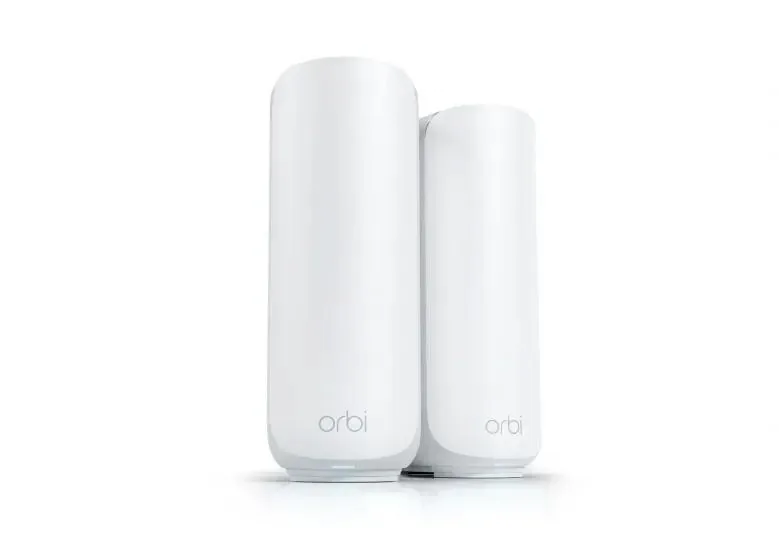
 Netgear Orbi 370RBE373 · netgear.com | Wi-Fi 7 | Dual (2.4 + 5) | 6,000 sq ft (3-pack), 70 devices | $349.99 (3-pack) |
 Amazon eero 7eero.com | Wi-Fi 7 | Dual (2.4 + 5) | 2,000 sq ft per unit, 120+ devices | $169.99 ($144.49) (1), $284.99 ($239.99) (2), $399.99 ($339.99) (3) |
 Google Nest Wifi Prostore.google.com | Wi-Fi 6E | Tri (2.4 + 5 + 6) | 2,200 sq ft per unit, 6,600 sq ft (3-pack) | From $199.99 (1-pack) |
| TP-Link Deco BE63Deco 7 Pro BE10000 · store.tapo.com | Wi-Fi 7 | Tri (2.4 + 5 + 6) | 5,800 sq ft (2-pack), 200 devices | $299.99 ($229.99) (1), $449.99 ($329.99) (2), $599.99 ($449.99) (3) |
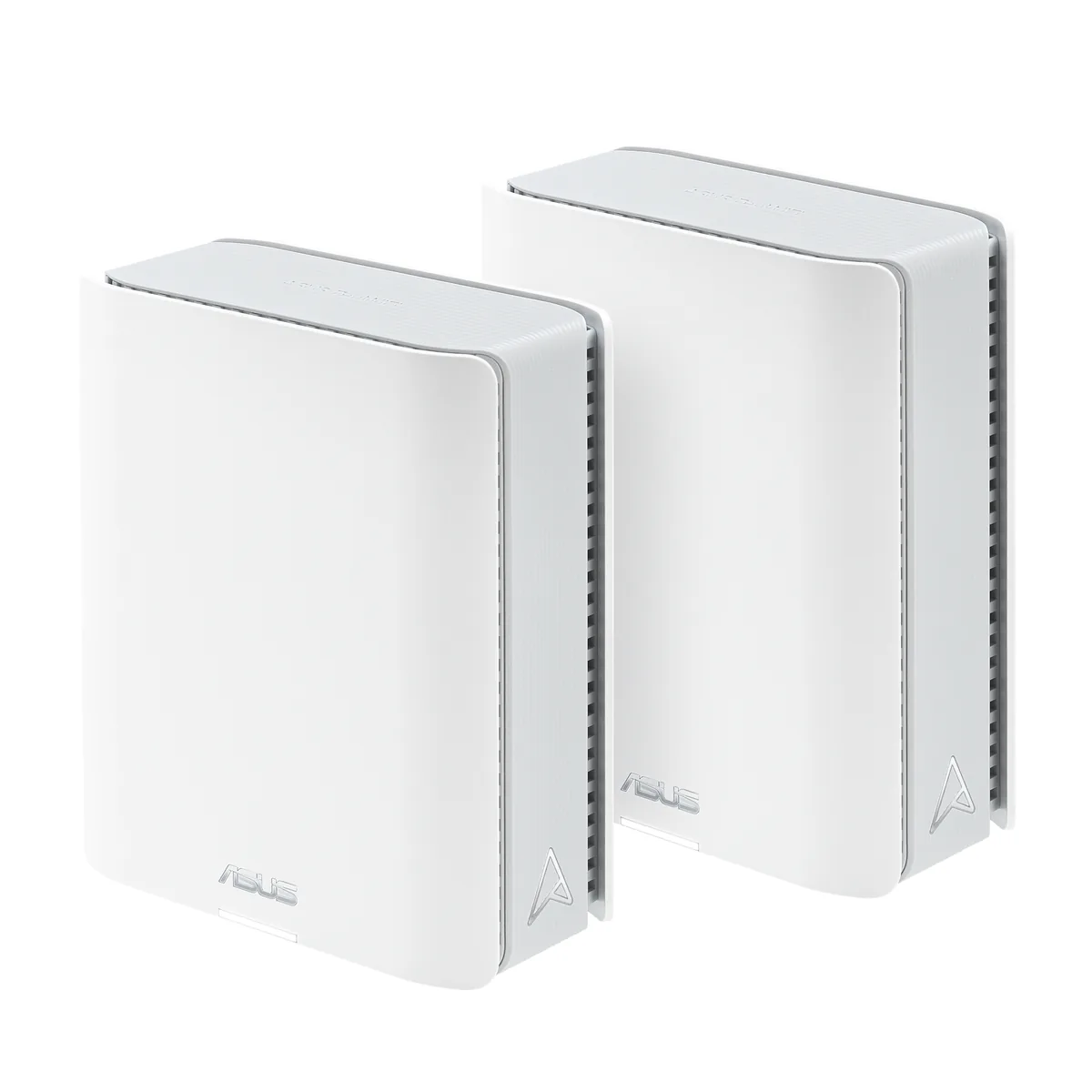
 ASUS ZenWiFi BT8BE14000 · shop.asus.com | Wi-Fi 7 | Tri (2.4 + 5 + 6) | 5,900 sq ft (2-pack) | From $329.99 |
Dual-band Wi-Fi 7 mesh, which leaves out the 6 GHz radio, has become the budget tier. The Deco BE25 and Orbi 370 three-packs are $249.99 and $349.99, and they fix coverage just as well as tri-band does, because coverage comes from how many units you have rather than how many bands. Tri-band earns its premium in dense flats and on multi-gigabit plans. The Deco BE63 has four 2.5 Gbps ports per unit, which also makes it the easiest of the six to wire.
+Reasons to pick mesh
- Units hand devices between themselves; Ofcom says extenders can hurt speed and mesh doesn’t
- One network name, one app, and the firmware updates itself
- Can be wired together later for a big gain
- Wi-Fi 7 three-packs from $249.99
+Reasons to pick an extender or powerline
- One weak room, and you’re not ready to replace the ISP router
- Powerline from around £20 where you need a wired socket
- You rent your home, so you can’t move the router or run cable
- Both are patches, and only as good as the signal or wiring they inherit
Which fixes to do, in which order
Do the wired speed test, move the router to the centre of the home and off the floor, and get it away from the microwave and the cordless phone. That’s an afternoon’s work, it costs nothing, and for a lot of homes it’s the whole fix. Then split the fast devices onto 5 GHz, update the firmware, and turn on QoS for the laptop you take video calls on. Only if the far rooms are still weak should you spend money. We’d buy a dual-band Wi-Fi 7 mesh three-pack such as the Deco BE25 or Orbi 370, put the satellites halfway to the dead zones, and run one Ethernet cable between units if there’s any way of doing so.
Skip the range extender unless it’s for one room and a short-term patch. And don’t buy a Wi-Fi 7 router to fix coverage. 320 MHz channels and 4K QAM make the rooms you already reach faster; they don’t reach new ones.
Frequently asked questions
Where is the best place to put a Wi-Fi router?
Central in the home, off the floor, in the open rather than in a cupboard, and away from microwaves, cordless phones, baby monitors, radiators and fish tanks. That’s Ofcom’s guidance and eero’s, and it’s the single change most likely to help.
Should I use 2.4 GHz or 5 GHz?
5 GHz for anything that needs speed and sits within a room or two of the router; 2.4 GHz for distant, low-bandwidth devices such as smart plugs. Netgear’s summary is that 2.4 GHz has the most coverage but slower speeds, and 5 GHz the reverse, with 23 channels against 11.
Will a Wi-Fi 7 router improve my signal?
Not the reach, no. It improves speed in the rooms you already cover, through 320 MHz channels, multi-link operation and 4K QAM. It won’t reach any further, because 6 GHz has a shorter range than 5 GHz. For coverage you need more units, which means mesh.
Is a mesh system better than a Wi-Fi extender?
Yes, for anything beyond one room. Ofcom notes that extenders “can affect your data speeds and how responsive your connection feels”, and mesh doesn’t. Wi-Fi 7 mesh three-packs start at $249.99 (Deco BE25) and $349.99 (Orbi 370) on the makers’ US stores.
Do powerline adapters work well?
Sometimes, and it depends on your wiring, which is Ofcom’s own caveat. TP-Link’s advice is to plug them straight into the wall, never into a power strip, and keep them away from motor-driven appliances and phone chargers. Where they do work, you get a cheap wired socket in a far room.
Sources and method
Placement, interference and band guidance are quoted from Ofcom’s consumer advice and from Netgear, eero and TP-Link support pages. Wi-Fi 6E and Wi-Fi 7 feature claims are the Wi-Fi Alliance’s own; 6 GHz spectrum figures are from the FCC’s April 2020 fact sheet. Prices and coverage claims were read from each maker’s US store on 28 September 2026 and are the vendors’ figures, not our measurements; we haven’t run hands-on range tests for this guide. Ofcom’s advice page blocks automated readers, so we read the text from a June 2025 archived copy of the same page.
- Ofcom, Improving your wifi experience (placement, interference sources, mesh vs extenders, powerline, Ethernet, device count)
- Netgear Support, difference between 2.4 GHz and 5 GHz (range, speed, 11 vs 23 channels, interference sources)
- Netgear Support, selecting wireless channels (non-overlapping channels 1, 6, 11 and 1, 7, 13; symptoms of interference)
- Netgear, What is firmware (why firmware updates matter)
- eero Support, Where should I place my eeros (20 to 30 feet apart, halfway to dead zones, height, heat)
- eero Support, Can I connect my eeros with Ethernet (wired backhaul benefits, cable types)
- TP-Link Support, Deco QoS settings (what QoS does, device and activity priority)
- TP-Link Support, slow powerline adapter speed (power strips, appliances, chargers)
- Wi-Fi Alliance, Wi-Fi CERTIFIED 7 (320 MHz channels, multi-link operation, 4K QAM)
- Wi-Fi Alliance, Wi-Fi 6E announcement, 3 January 2020 (14 additional 80 MHz and 7 additional 160 MHz channels)
- FCC fact sheet, Unlicensed Use of the 6 GHz Band, April 2020 (1,200 megahertz, 5.925 to 7.125 GHz, low-power indoor rules)
- Ofcom, Expanding access to the 6 GHz band, statement, July 2026 (UK 6 GHz Wi-Fi framework)
- eero, eero 7 (prices, 2,000 sq ft per unit, 120+ devices)
- Google Store, Nest Wifi Pro (from $199.99, 2,200 sq ft per unit, Wi-Fi 6E)
- TP-Link store, Deco BE63 and the store’s Deco BE25 listings (prices); Deco BE63 product page and Deco 7 series page (coverage, ports, Ethernet backhaul)
- Netgear, Orbi 370 RBE373 (price, coverage, devices)
- ASUS Store, ZenWiFi BT8 (from $329.99, BE14000, 5,900 sq ft two-pack)